
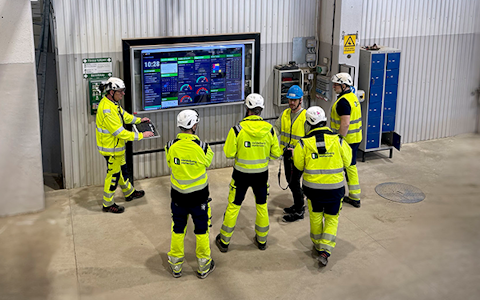
Digital dashboards that help you identify deviations and make the right decisions.

Continuous improvement, Kaizen boards, PDCA and other tools.

Capture your deviations and turn them into improvements

Real-time control for takt-based production. Detect disruptions as they happen, respond faster, and keep production on pace.

Integrate Boards on Fire with ERP, MES, OEE, Power BI and other systems. Automate data flows, reduce administration and act faster.
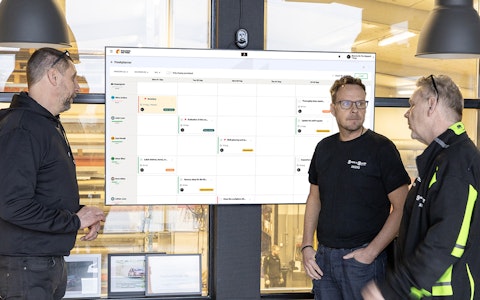
All your team’s tasks, neatly organized in one weekly view.
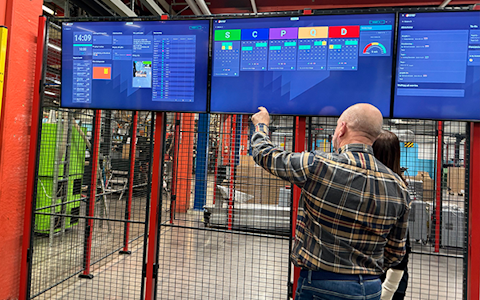
Improve key performance indicators within your specific focus areas with our SQCDP board.

Use the PDCA cycle as a tool to improve both quality and processes
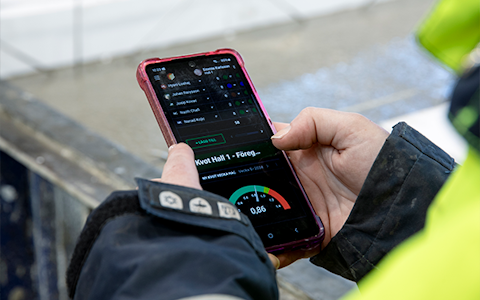
Digital tools for 5S work, recurring audits, and a well-organized workplace.

Basic project management and activity boards.
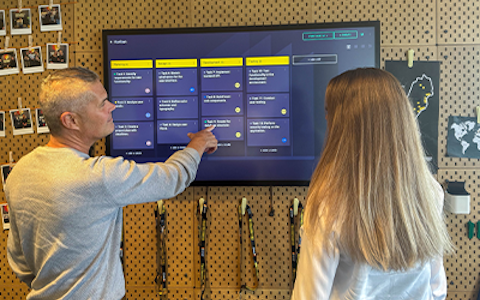
Kanban is a powerful method for visualizing, managing, and optimizing workflows.
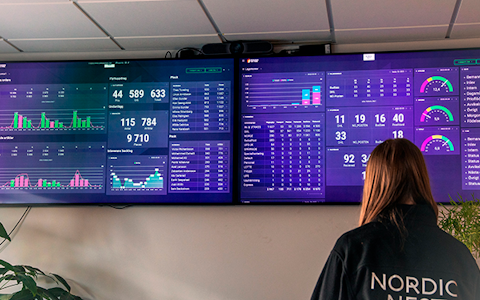
Visualize KPIs and communicate effectively throughout the entire organization.

Digital visitor registration provides full control over all planned and executed visits to your business.
Using Single Sign-On (SSO) with Boards on Fire offers several benefits:
Smoother User Login
Users log in with their existing Microsoft account, without needing to remember additional credentials.
Increased Security
The ability to use security measures like Multi-Factor Authentication (MFA) reduces the risk of unauthorized access.
Centralized User Management
Administrators can easily manage access and permissions directly via Microsoft Entra, without having to update users manually in Boards on Fire.
Fewer Forgotten Passwords
Since users do not need separate login credentials for Boards on Fire, the risk of login issues is reduced.
Boards on Fire uses OpenID Connect, a modern and secure authentication standard based on OAuth 2.0. This enables a stable and future-proof solution for federated login.
Would you like to simplify and secure login to Boards on Fire using SSO? Below are the steps to get started with the setup.
To allow us to configure SSO, we need to receive your Tenant ID connected to your Microsoft Entra environment.
Log in to Microsoft Entra and add Boards on Fire as an enterprise application in your tenant.
You can find the application here: https://azuremarketplace.microsoft.com/sv-se/marketplace/apps/aad.boardsonfire
Once the application is added, you can configure your settings, such as:
Assigning which users or groups should have access
Adjusting any permissions
Enabling security settings like multi-factor authentication (MFA)
Settings
In your Enterprise application, there are a few important settings:
Assignment required
If set to No, anyone who is a member of your Azure AD can log in to Boards on Fire. If set to Yes, users or groups of users must first be assigned in the Enterprise app in order to log in.
Admin consent
Boards on Fire requires three permissions for user profiles:
https://graph.microsoft.com/email
https://graph.microsoft.com/openid
https://graph.microsoft.com/profile
As an administrator, you can consent to these on behalf of all users by clicking Grant admin consent. If this is not done, each user will need to approve it individually during their first SSO login.
Step 4: Book Activation Time
Once the steps above are completed, book a date and time with your account manager at Boards on Fire to complete the activation of SSO.
Upon activation of Single Sign-On, we match your existing users' email addresses in Boards on Fire against those registered in your Microsoft Entra environment.
If a user attempts to log in via SSO but does not exist as a user in Boards on Fire, a new user account will be created automatically based on the email address.
Once SSO is activated, all currently logged-in users will be prompted to log out and then log in again via federated login.
Upon Login
During each login, we check if the user has been assigned a new first/last name or email address in Azure AD. If the name or email differs from what we have in Boards on Fire, we update the user in Boards on Fire with the new name/email.
Forgotten Password
Boards on Fire’s forgotten password flow does not work for a federated user. This is managed through your Azure AD.
Shared Users
If you have shared users from before, they will remain and function exactly as before. Shared users have their own login process and are not included in federation. If your environment is federated, we will display a warning when creating or editing a shared user.
User Removal
If a user is deleted in Boards on Fire but retains permissions in Azure:
The user will still be able to log in.
If no match is found upon login, a new user account will be created.
If a user is deleted in Azure:
The user cannot log in.
However, the user will remain active in Boards on Fire — you can manually delete them here as well.
Free web demo